Showing posts with label JAVA-TUTORIALS. Show all posts

Thursday, June 21, 2012

How to reverse a string using stack

this example shows how to reverse a string using stack
with the help of user defined method StringReverserThroughStack().
 
Sample Output :
JavaStringReversal
Reversed:lasreveRgnirtSavaJ

 
import java.io.IOException;
public class StringReverserThroughStack {

Saturday, January 7, 2012

Set background color (User control) java-tutorial


This code allows the user to choose the favorite color of himself/herself and adjust it on the bground of the page by moving mouse and choosing the color
sample output: 
<p>[<a href="/"onmouseover="document.bgColor='green'">Green</a>]<br>
[<a href="/"
onmouseover="document.bgColor='greem'">Bright Green</a>]<br>
[<a href="/"
onmouseover="document.bgColor='seagreen'">Sea Green</a>]<br>
[<a href="/"
onmouseover="document.bgColor='red'">Red</a>]<BR>
[<a href="/"
onmouseover="document.bgColor='magenta'">Magenta</a>]<br>
[<a href="/"
onmouseover="document.bgColor='fusia'">Fusia</a>]<br>
[<a href="/"
onmouseover="document.bgColor='pink'">Pink</a>]<br>
[<a href="/"
onmouseover="document.bgColor='purple'">Purple</a>]<BR>
[<a href="/"

Moving text status (java-tutorial)

<BODY onLoad="timerONE=window.setTimeout('slide(120,0)',20);">
<SCRIPT LANGUAGE="JavaScript">
function slide(jumpSpaces,position) {
var msg = "This JavaScript will slide in your desired message....Cool...isn't it???.......drink more coffee"
var out = ""
if (endScroll) {return false}
for (var i=0; i<position; i++)
{out += msg.charAt(i)}
for (i=1;i<jumpSpaces;i++)
{out += " "}
out += msg.charAt(position)
window.status = out
if (jumpSpaces <= 1) {
position++
if (msg.charAt(position) == ' ')
{position++ }
jumpSpaces = 100-position
} else if (jumpSpaces > 3)
{jumpSpaces *= .75}
else
{jumpSpaces--}

MSN search on web (java-tutorial)

sample output:
<head>
<meta name="GENERATOR" content="Microsoft FrontPage 6.0">
<meta name="ProgId" content="FrontPage.Editor.Document">
<meta http-equiv="Content-Type" content="text/html; charset=windows-1252">
<title>New Page 2</title>
</head>
<body>
<table BORDER="0" WIDTH="222" HEIGHT="18">
  <tr>
    <td WIDTH="214" HEIGHT="10">
    <form NAME="search" ID="search" ACTION="http://search.msn.com/results.asp" METHOD="get">
      <p><font FACE="arial" SIZE="2"><strong>Search
      <font COLOR="#808080">the Web for:</font></strong></font><br>
      <input TYPE="text" ID="q" SIZE="18" MAXLENGTH="251" NAME="q" VCARD_NAME="SearchText"><input TYPE="submit" VALUE="Search" NAME="B1"><input TYPE="hidden" NAME="FORM" VALUE="FRNT"><input TYPE="hidden" NAME="un" VALUE="doc"><input TYPE="hidden" NAME="v" VALUE="1"></p>
    </form>

Java as an Internet Language

Java is an object oriented language and a very simple language. Because it has no space for complexities. At the initial stages of its development it was called as OAK. OAK was designed for handling set up boxes and devices. But later new features were added to it and it was renamed as Java. Java became a general purpose language that had many features to support it as the internet language. Few of the features that favors it to be an internet language are:

Cross Platform Compatibility: The java source files (java files with .java extension) after compilation generates the bytecode (the files with .class extension) which is further converted into the machine code by the interpreter. The byte code once generated can execute on any machine having a JVM. Every operating system has it's unique Java Virtual Machine (JVM) and the Java Runtime Environment (JRE).

Support to Internet Protocols: Java has a rich variety of classes that abstracts the Internet protocols like HTTP , FTP, IP, TCP-IP, SMTP, DNS etc .

Support to HTML: Most of the programming languages that are used for web application uses the html pages as a view to interact with the user. Java programming language provide it's support to html. For example. Recently the extension package jipxhtml is developed in java to parse and create the html 4.0 documents.

What is Java?

Java is a high-level object-oriented programming language developed by the Sun Microsystems. Though it is associated with the World Wide Web but it is older than the origin of Web. It was only developed keeping in mind the consumer electronics and communication equipments. It came into existence as a part of web application, web services and a platform independent programming language in the 1990s.

Earlier, C++ was widely used to write object oriented programming languages, however, it was not a platform independent and needed to be recompiled for each different CPUs. A team of Sun Microsystems including Patrick Naughton, Mike Sheridan in the guidance of James Goslings decided to develop an advanced programming language for the betterment of consumer electronic devices. They wanted to make it new software based on the power of networks that can run on different application areas, such as computers and electronic devices. In the year 1991 they make platform independent software and named it Oak. But later due to some patent conflicts, it was renamed as Java and in 1995 the Java 1.0 was officially released to the world.

Friday, December 30, 2011

Pop-Up Window (java-tutorial)


<a href="#" onClick="MyWindow=window.open('window.html','MyWindow','toolbar=no,location=no,directories=no,status=yes,menubar=no,scrollbars=yes,resizable=no,width=400,height=300,left=200,top=100'); return false;">Click for Pop-Up</a>
Here is an example: Click for Pop-Up.

This is what the different variables of the code mean, and how you can customize them:
window.html the URL of the page you wish to pop up.
MyWindow the name you'd like to give to the pop-up window.
toolbar=no set to 'yes' if you'd like the window to have a toolbar.
location=no set to 'yes' if you'd like the window to have a location box.
directories=no set to 'yes' if you'd like the window to have a toolbar.
status=yes set to 'no' if you'd like the window to have no status bar.
menubar=no set to 'yes' if you'd like the window to have a menubar.
scrollbars=yes set to 'no' if you'd like the window to have no scrollbars.
resizable=no set to 'yes' if you'd like the window to be resizable.
width=400 the width in pixels of the window.
height=300 the height in pixels of the window.
left=200 the distance of the window from the left of the screen.
top=100 the distance of the window from the top of the screen.

You can have as many pop-up window links as you like on the same page, just be sure to give every one a different name.
To have a "Close Window" link as in the example above, use the following code:

The Navigator Object (java-tutorial)


<html>
<body>
<div id="example"></div>
<script type="text/javascript">
txt = "<p>Browser CodeName: " 
+ navigator.appCodeName + "</p>";
txt+= "<p>Browser Name: " 
+ navigator.appName + "</p>";
txt+= "<p>Browser Version: " 
+ navigator.appVersion + "</p>";
txt+= "<p>Cookies Enabled: "
+ navigator.cookieEnabled + "</p>";
txt+= "<p>Platform: " + navigator.platform
+ "</p>";
txt+= "<p>User-agent header: " 
+ navigator.userAgent + "</p>";
document.getElementById("example").innerHTML=txt;
</script>
</body>
</html
 
sample output:

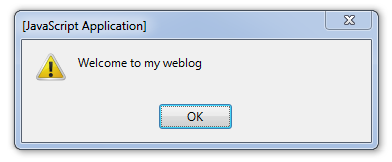
Text alert for enter and exit (java-tutorial)


<html>
<head>
<script language="javascript" type="text/javascript">
alert("Welcome to my weblog")
</script>
</head>
<body>
<h1>
<script language="javascript" type="text/javascript">
document.write("IranJavaScript")
//end hiding script from old browsers -->
</script>
</h1>
</body>
</html>

<!--   DESCRIPTION:  This will cause an elert message before your visitor leaves (OR reloads) your page.
-->

<BODY onUnload="window.alert(' Good Bye ')">
</BODY>
<!--   DESCRIPTION:  This will cause an elert message before your visitor leaves (OR reloads) your page.
-->
<BODY onUnload="window.alert(' Good Bye ')">
</BODY>

E-mail Validation (java-tutorial)


The function below checks if the content has the general syntax of an email.
This means that the input data must contain an @ sign and at least one dot (.). Also, the @ must not be the first character of the email address, and the last dot must be present after the @ sign, and minimum 2 characters before the end:

<html>
<head>
<script type="text/javascript">
function validateForm()
{
var x=document.forms["myForm"]["email"].value;
var atpos=x.indexOf("@");
var dotpos=x.lastIndexOf(".");
if (atpos<1 || dotpos<atpos+2 || dotpos+2>=x.length)
  {
  alert("Not a valid e-mail address");
  return false;
  }
}
</script>


Create and Store a Cookie (java-tutorial)


In this example we will create a cookie that stores the name of a visitor. The first time a visitor arrives to the web page, he or she will be asked to  fill in her/his name. The name is then stored in a cookie. The next time the visitor arrives at the same page, he or she will get welcome message.

<html>
<head>
<script type="text/javascript">
function getCookie(c_name)
{
var i,x,y,ARRcookies=document.cookie.split(";");
for (i=0;i<ARRcookies.length;i++)
  {
  x=ARRcookies[i].substr(0,ARRcookies[i].indexOf("="));
  y=ARRcookies[i].substr(ARRcookies[i].indexOf("=")+1);
  x=x.replace(/^\s+|\s+$/g,"");
  if (x==c_name)
    {
    return unescape(y);
    }

Close the browser with a button (java-tutorial)

s


<!-- Start of Close Browser Script -->
<!-- When the "Close Window" button is clicked, this script
    will close the browser window that the webpage is in.
-->
<script language="JavaScript">
<!--

function closeIt() {
  close();
}

// -->
</script>
<center>
<form>
<input type=button value="Close Window" onClick="closeIt()">
</form>
</center>

Add search button on your blog (java-tutorial)


<!-- Search Google -->
<center>
<FORM method=GET action="http://www.google.com/search">
<TABLE bgcolor="#FFFFFF"><tr><td>
<A HREF="http://www.google.com/">
<IMG SRC="http://www.google.com/logos/Logo_40wht.gif"
<br></A>
<INPUT TYPE=text name=q size=31 maxlength=255 value="">
<INPUT TYPE=hidden name=hl value="en">
<INPUT type=submit name=btnG VALUE="Google Search">
</td></tr></TABLE>
</FORM>
</center>
<!-- Search Google -->

Saturday, December 10, 2011

DropDown List and TextBox (java-tutorial)

<script LANGUAGE="JavaScript">

<!-- Begin      
var messages = new Array(6);
messages[0] = "";
messages[1] = "javascriptfreecode is a cool java site";
messages[2] = "Can you imagine how you could use it on your site?";      
messages[3] = "It's great for sharing lots of information.";
messages[4] = "And doesn't take up much space! ";
messages[5] = "So, get the code and put it on your site!";
function messageReveal() {
var messageindex = document.messageForm.messagePick.selectedIndex
document.messageForm.messageField.value = messages[messageindex];
}
// End -->
</script>
<!-- STEP TWO: Put this code into the BODY of your HTML document  -->
<body>

<center>
<form name="messageForm">
  <p><select name="messagePick" OnChange="messageReveal()">
  <option value="0">The Menu Message</option>
  <option>SONY CARD 20</option>
  <option>Possible uses?</option>
  <option>Shares Information</option>
  <option>Saves space</option>
  <option>Get the code!</option>
  </select> <br>
  </p>
  <p><textarea name="messageField" rows="5" cols="41" wrap="virtual"></textarea></p>
</form>
</center>
</body>

sample output:


Check and Uncheck All (java-tutorial)

<HEAD>

<SCRIPT LANGUAGE="JavaScript">

<!-- Begin
var checkflag = "false";
function check(field) {
if (checkflag == "false") {
for (i = 0; i < field.length; i++) {
field[i].checked = true;}
checkflag = "true";
return "Uncheck All"; }
else {
for (i = 0; i < field.length; i++) {
field[i].checked = false; }
checkflag = "false";
return "Check All"; }
}
//  End -->
</script>
</HEAD>

<!-- CONTINUE  -->

<BODY>

<center>
<form name=myform action="" method=post>
<table>
<tr><td>
<b>Your Favorite Scripts & Languages</b><br>
<input type=checkbox name=list value="1">Java<br>
<input type=checkbox name=list value="2">JavaScript<br>
<input type=checkbox name=list value="3">ASP<br>
<input type=checkbox name=list value="4">HTML<br>
<input type=checkbox name=list value="5">SQL<br>
<br>                                                   
<input type=button value="Check All" onClick="this.value=check(this.form.list)">
</td></tr>
</table>
</form>
</center>
<br />

sample output:


Dew Drops (java-tutorial)

<body style="background-color: #3e4b6a">
<font color="#9ba5c7">
<script language="javascript">
document.write(unescape("%3CDIV%20id%3DLayer1%20style%3D%22Z-INDEX%3A1%3B%20LEFT%3A0px%3B%20WIDTH%3A0%3B%20POSITION%3Aabsolute%3B%20TOP%3A0px%3B%20HEIGHT%3A0%3B%22%3E%0D%0A%3CEMBED%20pluginspage%3D%22http%3A//www.macromedia.com/go/getflashplayer%22%20src%3D%22http://bahar-20.com/ftp/subject/other.best/java.ghatreh/drip.swf%22%20width%3D%22990%22%20height%3D%22640%22%20type%3Dapplication/x-shockwave-flash%20quality%3D%22high%22%20menu%3D%22false%22%20wmode%3D%22transparent%22%3E%0D%0A%3C/EMBED%3E%0D%0A%3C/DIV%3E%0D%0A%3CDIV%20id%3DLayer1%20style%3D%22Z-INDEX%3A1%3B%20LEFT%3A0px%3B%20WIDTH%3A0%3B%20POSITION%3Aabsolute%3B%20TOP%3A645px%3B%20HEIGHT%3A0%3B%22%3E%0D%0A%3CEMBED%20pluginspage%3D%22http%3A//www.macromedia.com/go/getflashplayer%22%20src%3D%22http://bahar-20.com/ftp/subject/other.best/java.ghatreh/drip.swf%22%20width%3D%22990%22%20height%3D%22640%22%20type%3Dapplication/x-shockwave-flash%20quality%3D%22high%22%20menu%3D%22false%22%20wmode%3D%22transparent%22%3E%0D%0A%3C/EMBED%3E%0D%0A%3C/DIV%3E"));
</script>
<div style="Z-INDEX:1; LEFT:0px; WIDTH:0; POSITION:absolute; TOP:0px; HEIGHT:0;" id="Layer1">
<embed width="990" height="640" wmode="transparent" menu="false" quality="high" type="application/x-shockwave-flash" src="http://bahar-20.com/ftp/subject/other.best/java.ghatreh/drip.swf" pluginspage="http://www.macromedia.com/go/getflashplayer">
</div>
<div style="Z-INDEX:1; LEFT:0px; WIDTH:0; POSITION:absolute; TOP:645px; HEIGHT:0;" id="Layer1">
<embed width="990" height="640" wmode="transparent" menu="false" quality="high" type="application/x-shockwave-flash" src="http://bahar-20.com/ftp/subject/other.best/java.ghatreh/drip.swf" pluginspage="http://www.macromedia.com/go/getflashplayer">
</div><br><br><br>
</font>
</body>

sample output:

Friday, December 2, 2011

Pop-Up Window (javascript)

<a href="#" onClick="MyWindow=window.open('window.html','MyWindow','toolbar=no,location=no,directories=no,status=yes,menubar=no,scrollbars=yes,resizable=no,width=400,height=300,left=200,top=100'); return false;">Click for Pop-Up</a>
Here is an example: Click for Pop-Up.

This is what the different variables of the code mean, and how you can customize them:
window.html
the URL of the page you wish to pop up.
MyWindow
the name you'd like to give to the pop-up window.
toolbar=no
set to 'yes' if you'd like the window to have a toolbar.
location=no
set to 'yes' if you'd like the window to have a location box.
directories=no
set to 'yes' if you'd like the window to have a toolbar.
status=yes
set to 'no' if you'd like the window to have no status bar.
menubar=no
set to 'yes' if you'd like the window to have a menubar.
scrollbars=yes
set to 'no' if you'd like the window to have no scrollbars.
resizable=no
set to 'yes' if you'd like the window to be resizable.
width=400
the width in pixels of the window.
height=300
the height in pixels of the window.
left=200
the distance of the window from the left of the screen.
top=100
the distance of the window from the top of the screen.

You can have as many pop-up window links as you like on the same page, just be sure to give every one a different name.
To have a "Close Window" link as in the example above, use the following code:

more info....

//